SafeExamBrowser Usage Guide
For assessments which require Safe Exam Browser, you must have the browser installed on your system.
Download and Installation
You can download the browser from the official release here: https://safeexambrowser.org/download_en.html
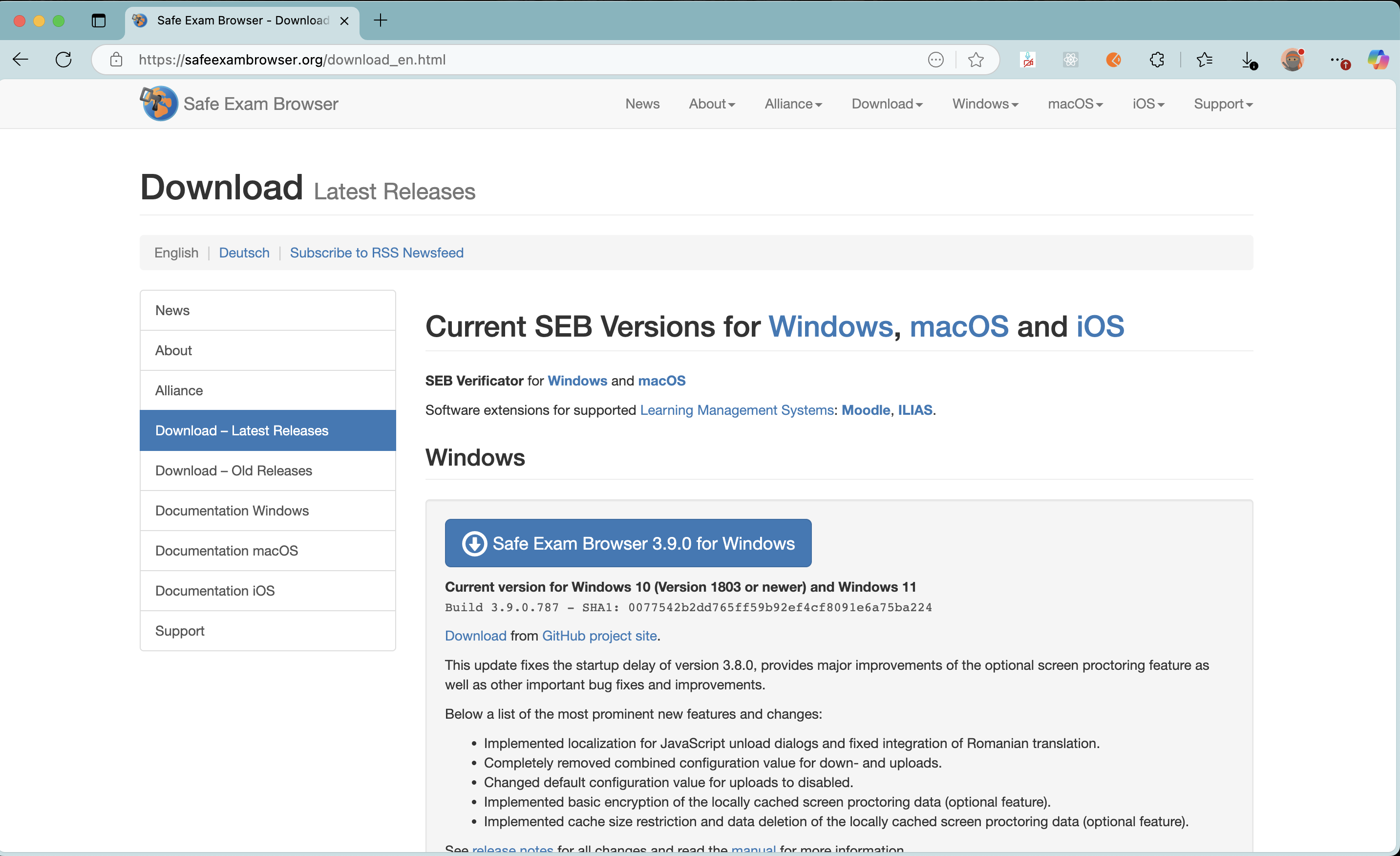
How to Use SafeExamBrowser
Once the application is installed, visit the test page - which will make you download the .seb file
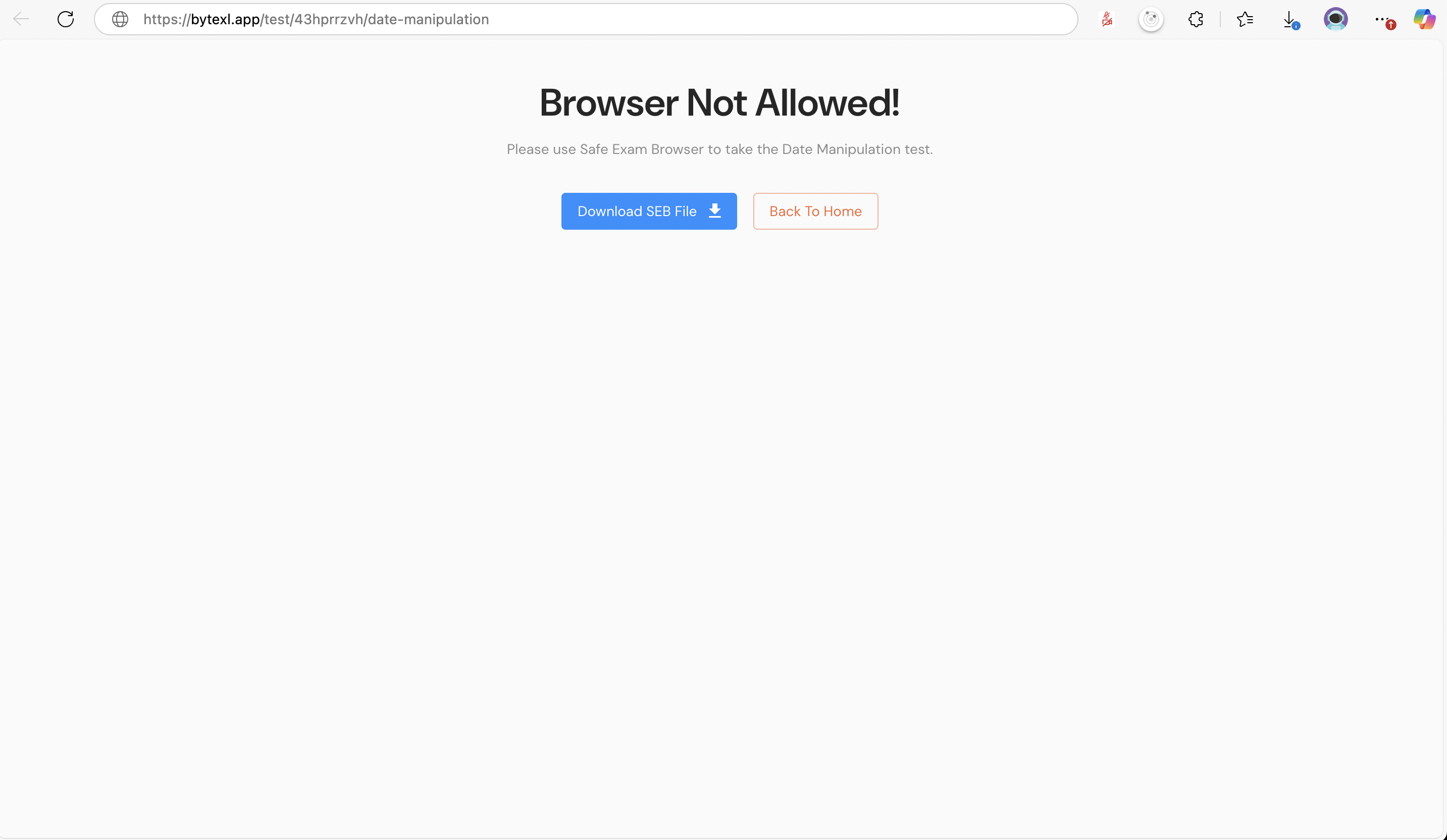
-
.sebfiles are entry points to Safe Exam Browser. -
Your system should automatically open
.sebfiles by launching the Safe Exam Browser application. If not, make the SafeExamBrowser as the default application for.sebfiles.
Important Notes
Upon opening the browser, you'll be asked to login with your ByteXL credentials. Make sure you have it handy, as the SafeExamBrowser application will not allow you to access any other application in your system without exiting the assessment.
Key Features
- Secure Environment: Blocks access to other applications during the exam
- Kiosk Mode: Prevents switching to other programs
- Network Filtering: Can restrict internet access to allowed URLs only
- Secure Login: Requires ByteXL credentials for authentication
Troubleshooting
.seb file doesn't open automatically
- Right-click on the
.sebfile - Select "Open with"
- Choose SafeExamBrowser
- Check "Always use this app to open .seb files"
Can't exit the browser
- Complete or finish your assessment first
- Use the designated exit button within the test interface
- Contact your instructor for the passcode to exit
System Requirements
Please ensure your system meets the requirements listed on the official SafeExamBrowser website before installation.